STEP 01
Open the page menu
Press and hold either side button to open the page menu.
ENGLISH USER GUIDE / NOTE4
Get to know your NOTE4, connect it with the ZECTRIX app, and bring your reminders and cards to e-paper.
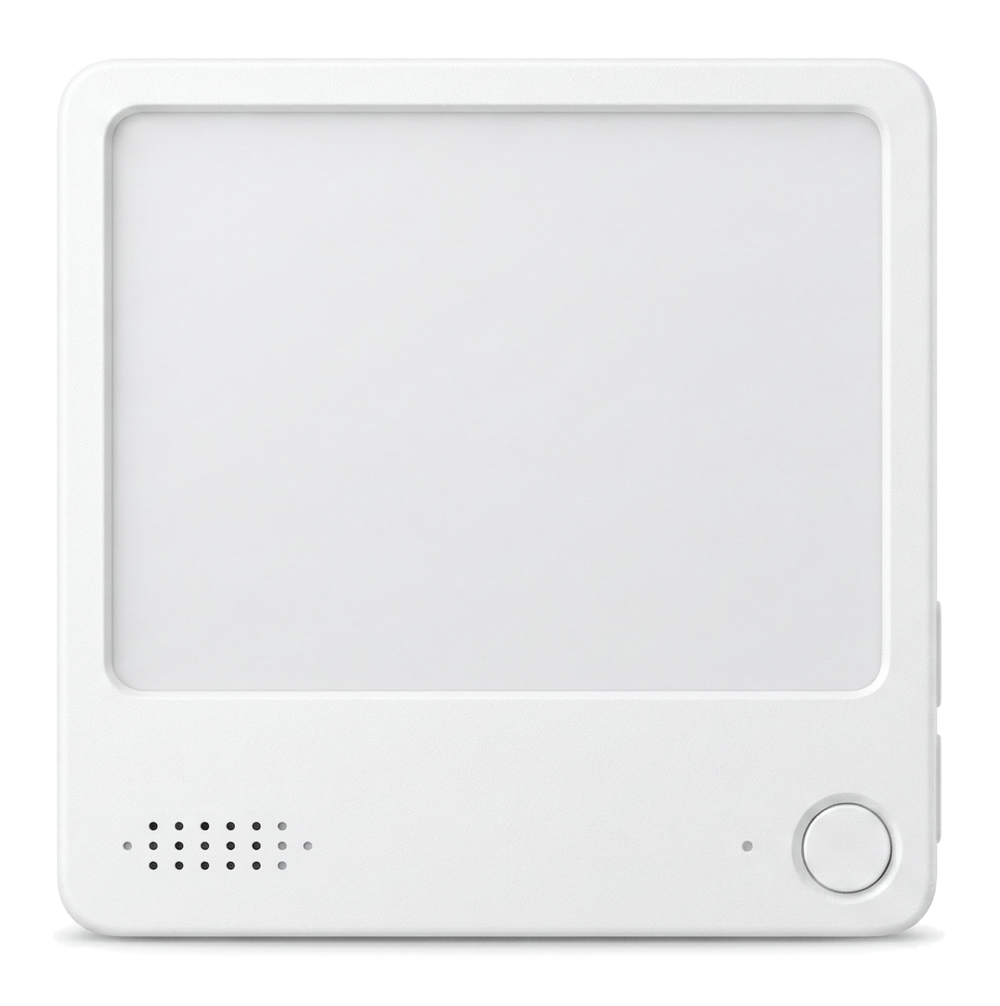
6 is on the left side; 7 is on the underside.
Press and hold either side button to open the page menu. Use Up / Down to choose a page, then short press the round Voice / OK button.
Round button on the front. Press and hold for voice input; short press to confirm a menu selection.
Upper button on the right. Short press to navigate; on the clock page, open countdown settings.
Lower button on the right. Press and hold for 2 seconds, then release to power on. On the clock page, short press for Pomodoro settings.
Front microphone opening. Speak within about 20 cm for clearer voice input.
Front speaker opening and status light for spoken replies, alerts and device status.
Recessed reset hole on the left side, level with the lower side button. Gently press with a pin to restart an unresponsive device.
Port on the underside for charging and data. Connect a USB-C cable to charge.
For NOTE4. App screenshots and pairing illustrations follow the current English app design; available features and wording may vary with your app and firmware version.
01 / GET READY
Install the app, then connect your NOTE4 in a few simple steps.

Look for this app name and icon.
Press and hold the lower side button for 2 seconds, then release it. Your NOTE4 enters pairing mode automatically on its first startup.
Use your ZECTRIX account. On the Devices tab, tap + Add.
Turn on Bluetooth. Allow ZecTrix to use Bluetooth / Nearby devices when prompted. If your phone requests location or local network access during setup, allow it as prompted.
Look for the large Wi-Fi icon in the top-left corner of your NOTE4 screen. In the app, tick I see the Wi-Fi icon on my device, then tap Scan devices.
On first startup, your NOTE4 enters pairing mode automatically. Check the icon, then scan.
You only need these steps if the Wi-Fi icon is missing or you want to set up Wi-Fi again. For first-time setup, continue straight to the next section.
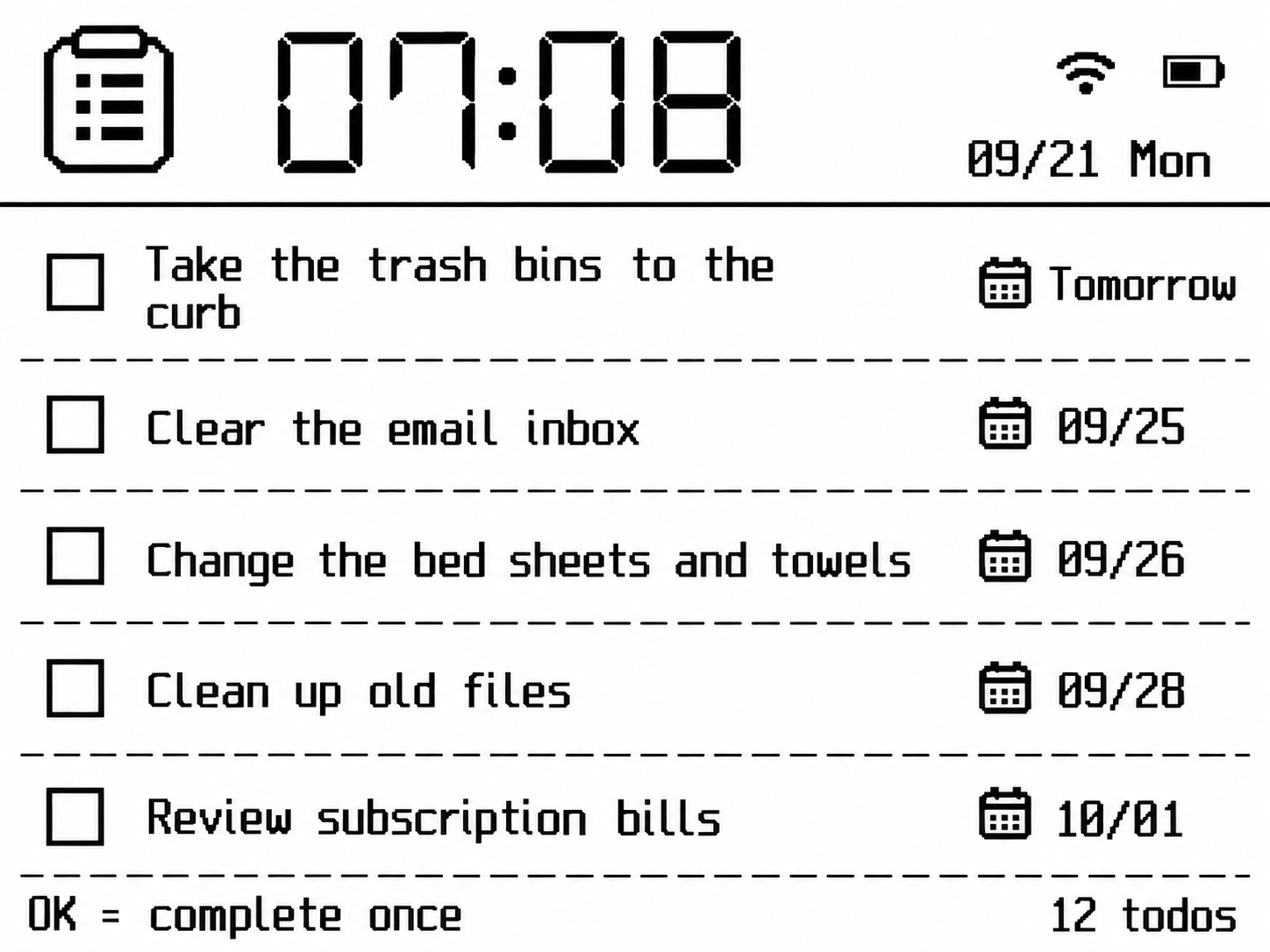
Press and hold either side button to open the page menu.
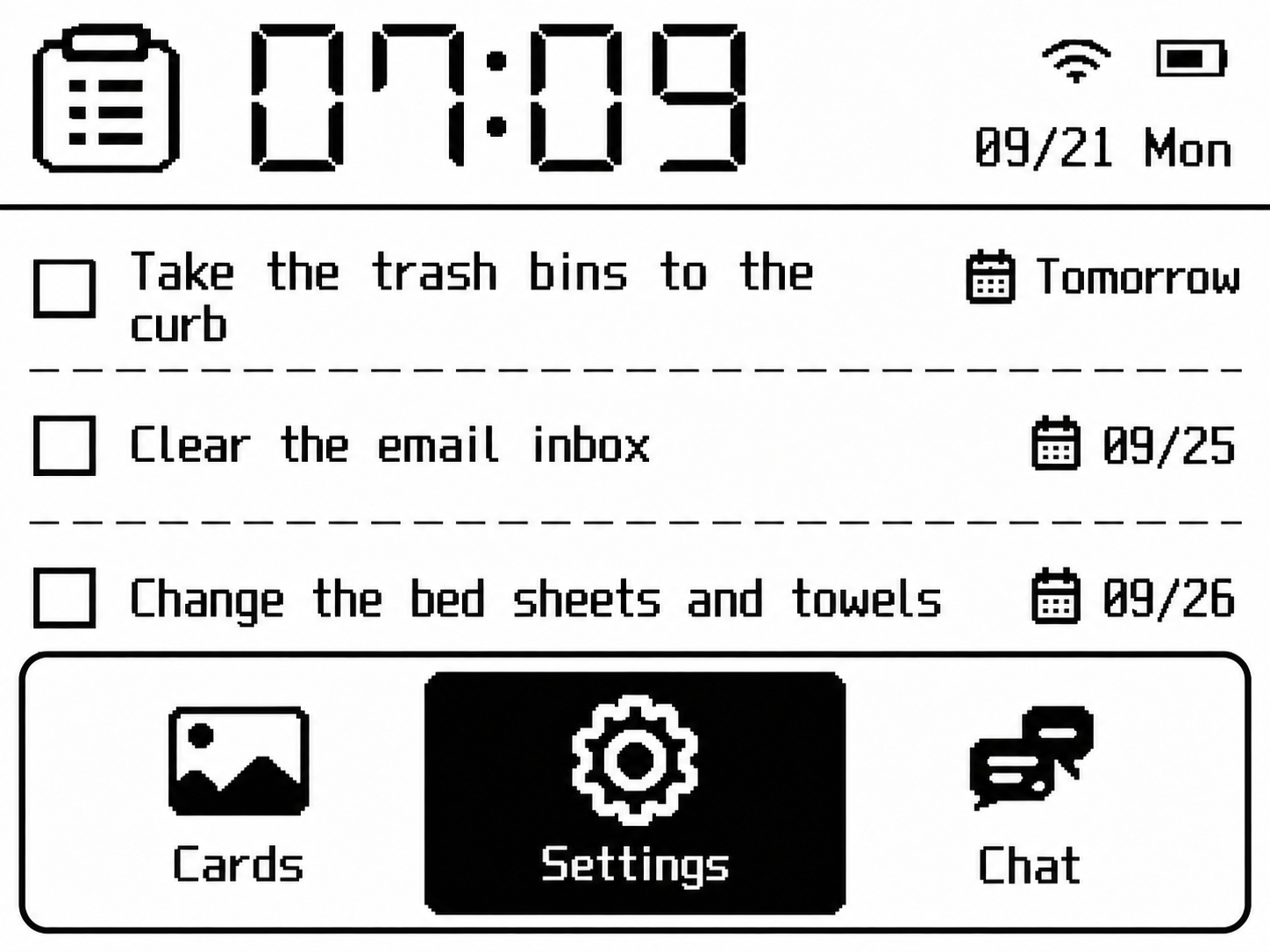
Use Up / Down to select Settings. Short press the round confirm button.
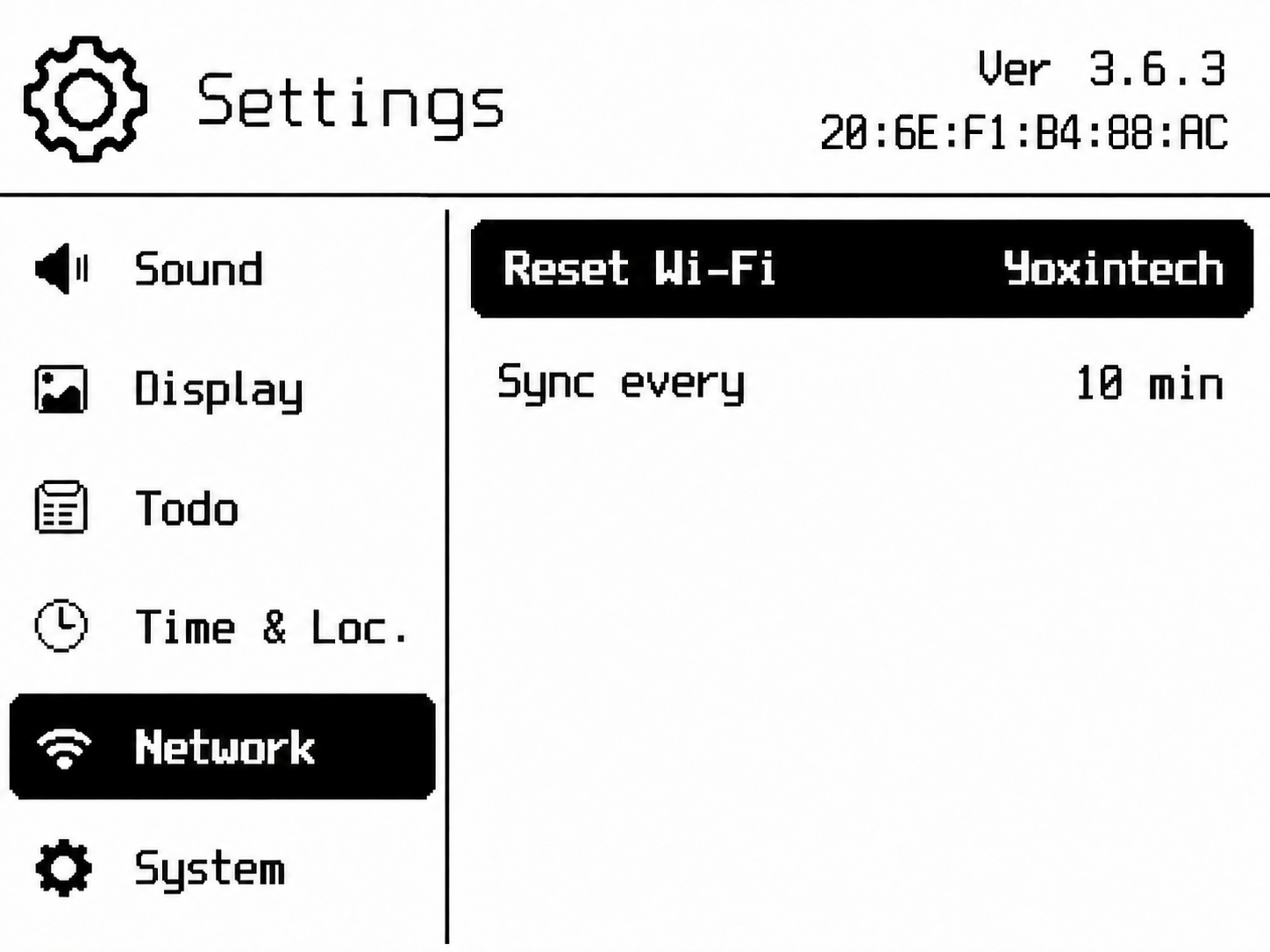
Use Up / Down to select Network. On Reset Wi-Fi, short press the confirm button.
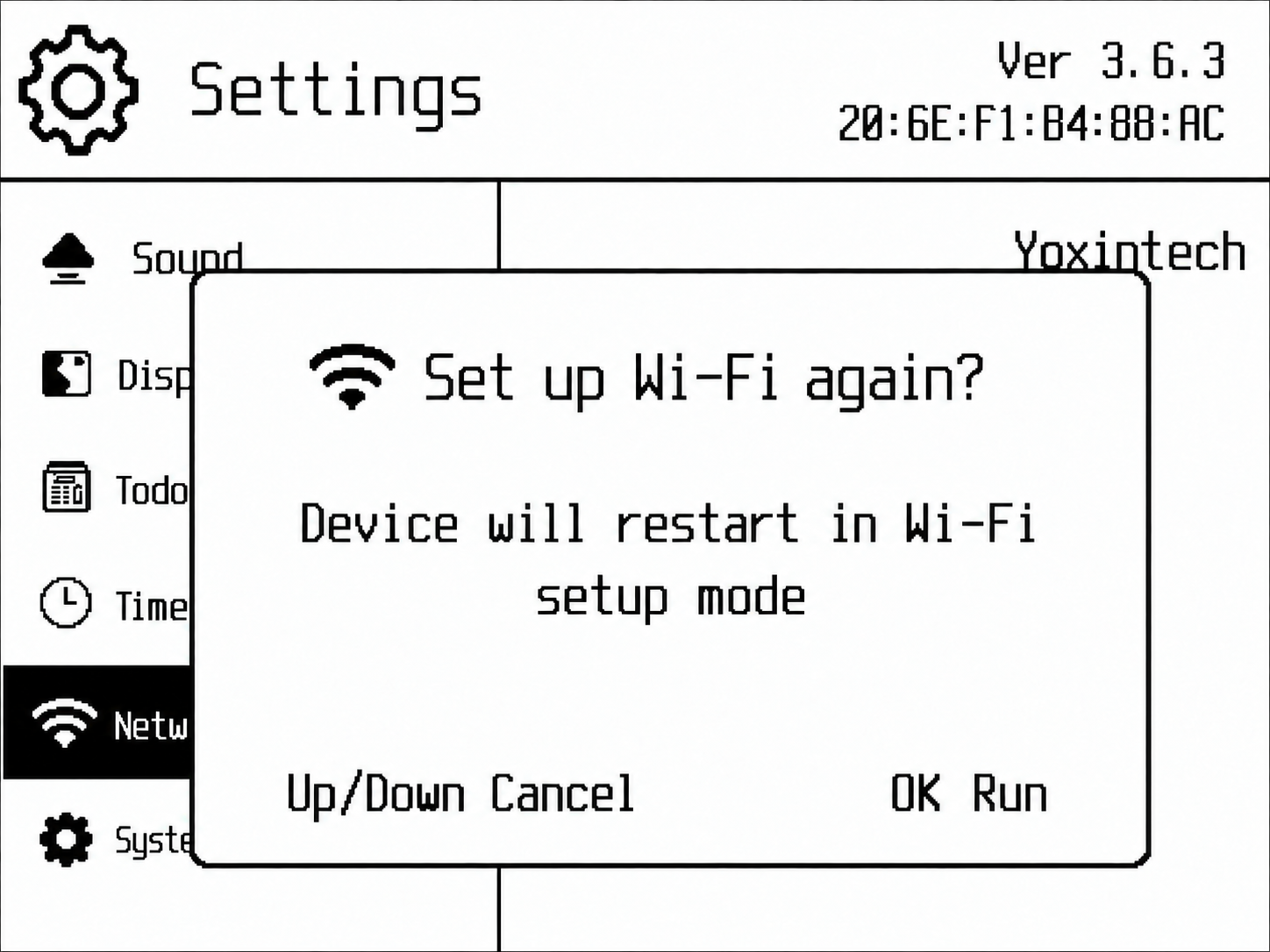
At “Set up Wi-Fi again?”, short press confirm once more. The device restarts in Wi-Fi setup mode.
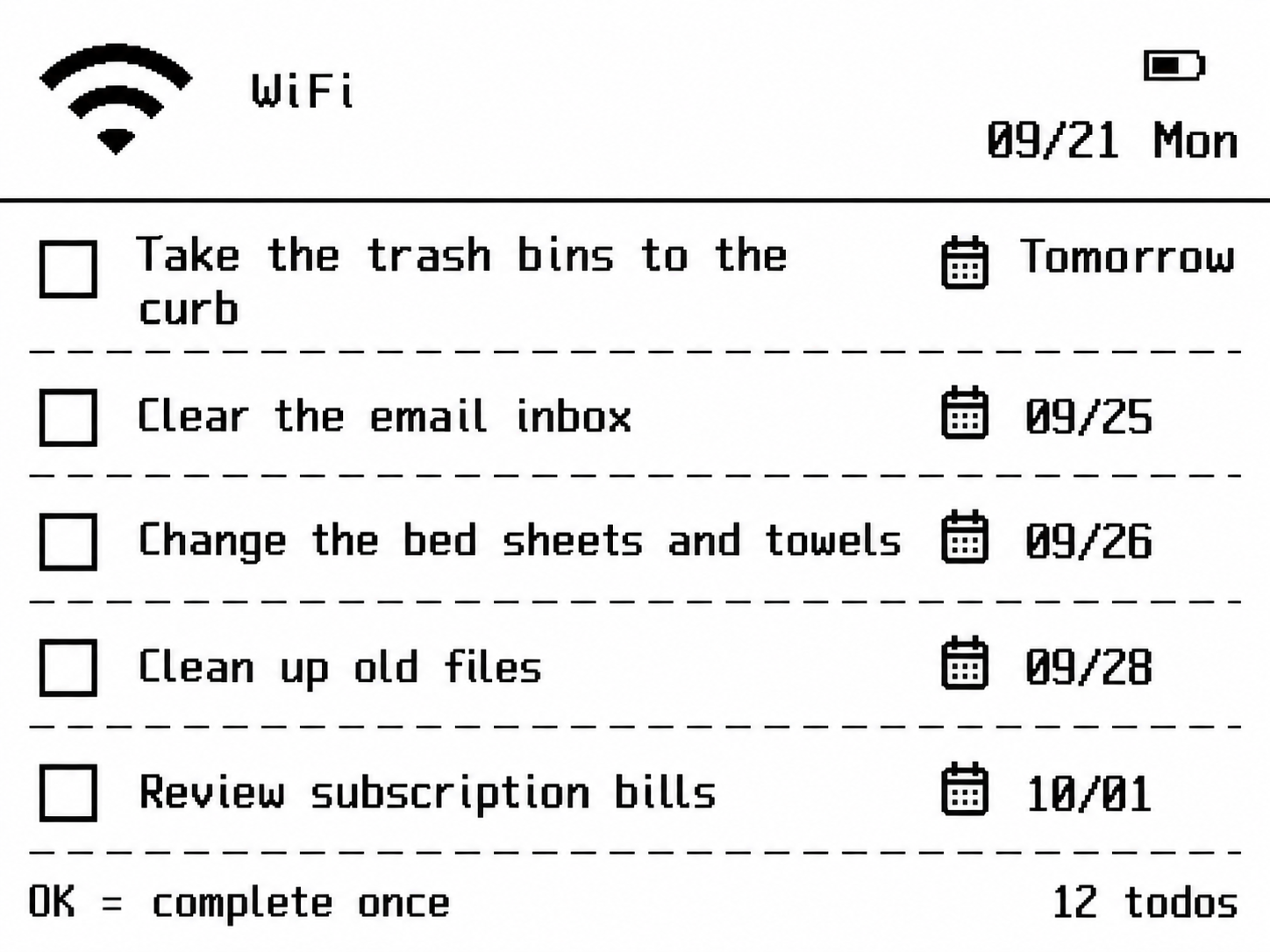
The Todo icon in the top-left corner becomes a large Wi-Fi icon. Keep this screen active.
02 / ON YOUR PHONE
Keep your phone near the NOTE4 throughout setup.
On Ready to pair?, tick “I see the Wi-Fi icon on my device”, then tap Scan devices. Select your ZECTRIX device and tap Next.
Choose a nearby 2.4 GHz network or enter its name. Enter the password. For a network without a password, select Open network. Tap Configure device.
Wait for Setup complete. Tap Done to return to Devices and check that your NOTE4 appears.
Choose Have a share code?, enter the code from the owner, then tap Bind device. This route does not require Bluetooth pairing or Wi-Fi configuration.
ZECTRIX_6C36 and the network names shown are examples. Select your own device and Wi-Fi network.
03 / EVERYDAY USE
Use the same account that you used to add the device.
View active and completed reminders. Tap +, then Manual entry or Voice todo to add a reminder.
Enter a title, date and time, choose a repeat schedule, and select the linked NOTE4. Tap Create todo.
Create a Custom Text card, draw or write with Handwriting, or prepare a photo with Custom Image. Send your finished card to your NOTE4.
View your NOTE4, last sync, firmware, sync interval, location and language. Use the edit icon to manage the device, or Card to open its cards.
In Cards → Custom, choose Custom Text, Handwriting or Custom Image. If a destination slot is offered, choose one of the device’s five extension slots. The device shows the new content after its next sync.
Open Manage Device → Sharing & Access → Share Device and follow the app’s sharing flow. The recipient can bind the device with the share code.
Screens shown are from the current app design. Example names, dates and data are for illustration.
04 / ON THE DEVICE
Shows today’s and tomorrow’s weather when no todo is present. When there is a todo, it replaces the tomorrow-weather area.
Review reminders. Use a side button to select a todo; short press Voice / OK to mark it complete. Hold Voice / OK on a selected todo to open its delete menu.
Turn longer voice notes into locally stored memos. You can also ask about notes you have saved.
Press and hold the voice button to ask a question. The device replies with voice and on-screen text.
View cards, images and information sent to the device. New content appears when the device next synchronizes.
Adjust network and sync settings and other device preferences. Use the side buttons to select and Voice / OK to confirm.
VOICE TODOS
Press and hold the round voice button. Wait for the beep and microphone icon, speak, then release to finish.
Include both a clear action and a time. Check the resulting reminder and correct it in the app if needed.
“Remind me to call my daughter at 8 pm.”
“Remind me to play tennis tomorrow at 3 pm.”
“Remind me to finish homework every Monday at 7 pm.”
Voice examples illustrate the intended commands. Recognition and available languages depend on the firmware and service configured on your device.
05 / CLOCK & SYNC
NOTE4 fetches new todos, cards and images at its next scheduled sync.
Open Devices → your NOTE4 → Sync Interval and choose the interval you want.
Hold either side button to open the page menu. Select Settings → Network Sync → Sync Interval. Use Up / Down to choose and the round confirm button to save.
Short intervals update content more often and use more battery. A short interval can help you check a new card or todo during setup; increase it again for everyday use.
| Interval | What to expect |
|---|---|
| Off | No automatic fetching of new content. |
| 1 minute | Most frequent updates; highest sync-related battery use. |
| 10 minutes | More frequent updates than the recommended starting point. |
| 30 / 60 minutes | A practical starting point for everyday use. |
| 180 / 720 minutes | Less frequent updates for content that changes slowly. |
Available choices may vary by app and firmware version. Battery life also depends on voice use, network conditions and other usage.
In the app, open Manage Device → Location. You can also change the weather location in device settings or use a supported voice command.
On the clock page, short press the lower side button to open Pomodoro settings.
On the clock page, short press the upper side button to open countdown settings.
06 / TROUBLESHOOTING
Confirm that the NOTE4 shows the large Wi-Fi icon at the top left. Keep it within about 1 metre of your phone. Turn on Bluetooth and check that ZECTRIX has Bluetooth / Nearby devices permission. Allow location access if your phone requests it for scanning, then tap Scan again.
Use a 2.4 GHz network and check the password. If the network has no password, select Open network. For a phone hotspot, enable its 2.4 GHz or compatibility option. Avoid networks with a browser sign-in page. Put NOTE4 back in pairing mode, move near the router and try again.
Tap Done and reopen or refresh Devices. Check that you are signed into the account used during setup. If another account previously owned the device, contact support to check its binding. Repeated factory resets do not resolve account ownership.
Wait for the next sync and check that automatic sync is enabled. Confirm the correct linked device and, for cards, the destination slot. Temporarily use a shorter interval to test the update.
Increase the sync interval. Frequent network synchronization and voice interactions use more battery. The online guide gives a broad range of about one week to three months per charge depending on use; this is an estimate, not a guaranteed runtime.
Connect it to power. If it still does not respond, gently press the recessed Reset hole on the left side with a pin to restart it. If the issue continues, contact support with a photo of the screen and the steps that led to the problem.
Phone settings differ by model and OS version. Check the permissions for the ZECTRIX app and follow the actual system prompts.
07 / SUPPORT & DEVELOPERS
Use email or the existing support form on the ZECTRIX website.
TECHNICAL SUPPORT
Email your question, or submit it through the website’s English support form.
Open support form ↗The form opens on zectrix.com. Select NOTE4 as the product.
Do not include Wi-Fi passwords, API keys or full payment details.
BUILD WITH NOTE4
Explore the Wiki for HTTP API documentation, custom content and community projects. Check that any firmware is intended for your exact device model before using it.
For non-commercial development materials, email support with your order information and what you want to build.
Based on the official NOTE4 online guide, with English app screens and the current pairing design. Edition: 14 October 2026.