NAS Gallery
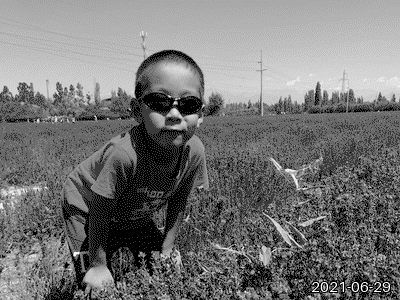
Randomly choose portraits from a NAS photo folder, fill NOTE4 in sixteen shades of gray, and show the capture date.
Local Push SDK · Public source
View & install Views0

Custom ink cards · NOTE4 · Monochrome
Rediscover photos from around this date in past years in your NAS library, then send them to monochrome NOTE4.
Pushes the user's own NAS photos to the device. A verifiable public ink-card output is not yet available.
Rediscover photos from around this date in past years in your NAS library, then send them to monochrome NOTE4.
Install & use
Enter a key and give the task to your local AI. AI handles installation, previews and device discovery.
AI uses the key to list your devices; you only need to confirm which one to use.
Sign in to the cloud platform by QR code → use Scan in the mini program's Me tab → open Open API on the website → create an API Key.
A shorter path is planned: Get API in the mini program menu. This entry is not live yet.
Codex on your computer can install dependencies and run programs locally.
After copying, start a new chat in Codex on your computer and paste the task.
Leave it blank if unknown. AI can retrieve it from the official device list, without searching the device menus.
These are image slots 1–5. Before the first push, AI confirms the target device and slot to avoid overwriting existing content.
The Key is only saved in a local connection file and is not included in the AI task.
The key is in your saved local file. This page only remembers the filename and device selection, which you can reuse for another plugin.
This project supports NOTE4 · Monochrome.
The task includes project information, standard API documentation, the connection filename and device selection. The API Key stays in a local file and is never copied into the task.
The device shows the expected Synology Photos Sync screen and continues to work after repeated updates.
AI generates a preview first, then confirms the target device and first update with you. It reports installation location, verification results and how to start again. Continue in the same conversation if anything goes wrong.
NOTE4 with original firmware · ZECTRIX Cloud API · Synology NAS / Python
Run the program on a NAS or a computer with access to the photo directory. Prepare the library path, read permission and your ZECTRIX API credentials.
Install Python and imaging dependencies using the project instructions, then select the device, photo directory and push settings. Keep your photo library and account credentials out of public repositories.
Check photo selection and monochrome conversion locally before pushing to the device and setting a schedule. Current install commands and directory rules have not been checked in this site.
Information organized · Release version and installation await review. Generating a task does not send it or run an installation automatically.
The project selects photos and pushes rendered images to the device. Check the current configuration for the exact scan, read and upload scope.
This listing covers cloud-API photo sync while retaining original firmware. It is separate from the 16-Gray Gallery workflow that replaces firmware.
Randomly choose portraits from a NAS photo folder, fill NOTE4 in sixteen shades of gray, and show the capture date.
Local Push SDK · Public source