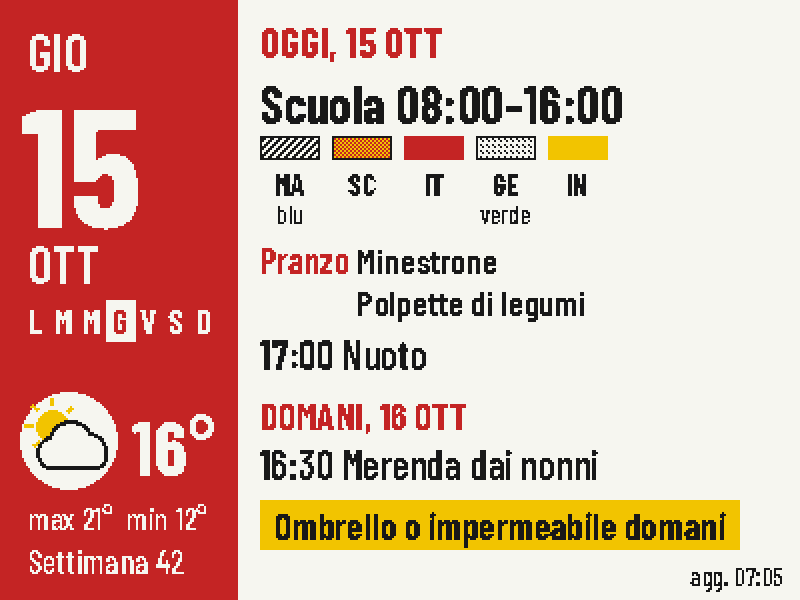
Zaino School Planner
Put today's classes, school lunch, weather and tomorrow's bag checklist on one four-color screen.
Firmware + companion service
View & install Views0
Device firmware · NOTE4 · Monochrome
An open-source learning system developed by a high-school student, connecting question capture, organization, FSRS review and learning records. Its dedicated NOTE4 firmware brings question review, vocabulary, tasks and voice AI to e-paper, syncing results back to a WQN server.
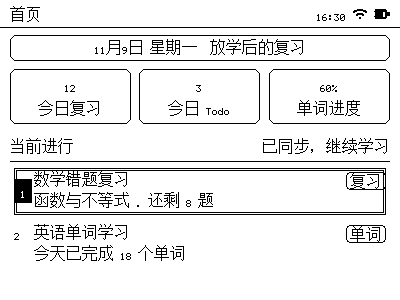
An open-source learning system developed by a high-school student, connecting question capture, organization, FSRS review and learning records. Its dedicated NOTE4 firmware brings question review, vocabulary, tasks and voice AI to e-paper, syncing results back to a WQN server.
Install & use
Connect the device and give AI the detection results together with this firmware information.
USB chip information cannot distinguish monochrome from four-color screens. Confirm the model first.
Read the chip and capacity first, so AI needs fewer follow-up questions.
Detection may restart the device into download mode. It does not flash firmware; you still need to confirm the display model.
Not detected yet. You can also copy the task first and ask AI to help connect.
Codex on your computer can install dependencies and run programs locally.
Check compatibility → Prepare firmware and a full backup → Assist with local installation → Verify first run
After copying, start a new chat in Codex on your computer and paste the task.
Only project information and the device details selected here are included. Network addresses, accounts and keys are configured locally during installation.
The device displays the expected WQN interface and continues to work after repeated updates.
Ask AI to report the installation location, verification results and how to start again. Continue in the same conversation if something goes wrong.
NOTE4 monochrome · ESP-IDF 5.5.4 · WQN account or self-hosted server · Wi-Fi · Separate AI service configuration
The submission states that wqn.helema.cn has closed registration because of limited resources; contact the developer for access or self-host Wrong-Question-Notebook. Follow its README with Node.js 24+, npm, Docker and Supabase CLI, configuring the database, authentication, storage and desired model services. Confirm your web service and account work before pairing hardware.
Targets monochrome NOTE4 with zectrix-s3-epaper-4.2, ESP32-S3 and 16 MiB Flash, not NOTE4C. Preserve your own complete Flash backup and recovery path, then build and flash with ESP-IDF 5.5.4 following the firmware README. No GitHub Releases installer is currently available. Paths, COM ports and backup checksums in the docs describe the author’s environment, not yours.
For self-hosting, point WQN_API_BASE to your own /api/esp32, then configure Wi-Fi and pair the device. Check problem download, button-based review and result synchronization before enabling voice and MCP. Realtime voice requires the realtime proxy and provider configuration; remote agents require an OpenCode gateway. Provider keys remain server-side. Offline content does not mean offline AI.
Source and setup docs reviewed; full service and hardware not tested. Generating a task does not send it or perform installation.
WQN replaces the NOTE4 operating firmware and pairs with its own server for bidirectional synchronization over its device API. It is not an image-push plugin for the official firmware or a Zectrix Cloud Open API workflow. Web, MCP and hardware share learning records.
No. The current MCP registry covers 38 tools, while device voice exposes a separately defined authorized subset. Availability also depends on server settings and user permissions. Questions, images, audio and learning records processed by models pass through the configured WQN and relevant AI services.
Suited to students and developers willing to self-host, compile firmware and contribute feedback. The submission describes a high-school-student developer working with student testers. Development remains active, with some study flows and power-management features evolving. We have not evaluated educational outcomes; AI answers are not a correctness guarantee.
The 400×300 preview was rendered on a computer using the current firmware’s original drawing functions and bundled fonts. Problems, time, progress and battery values are samples, not a hardware capture. We reviewed both repositories, deployment docs and relevant FSRS, MCP, voice and remote-agent implementations. We have not deployed the full service, built/flashed a device or tested voice. Both repositories use GPL-3.0; the Web project builds on mrmagic2020/Wrong-Question-Notebook.
Put today's classes, school lunch, weather and tomorrow's bag checklist on one four-color screen.
Firmware + companion service
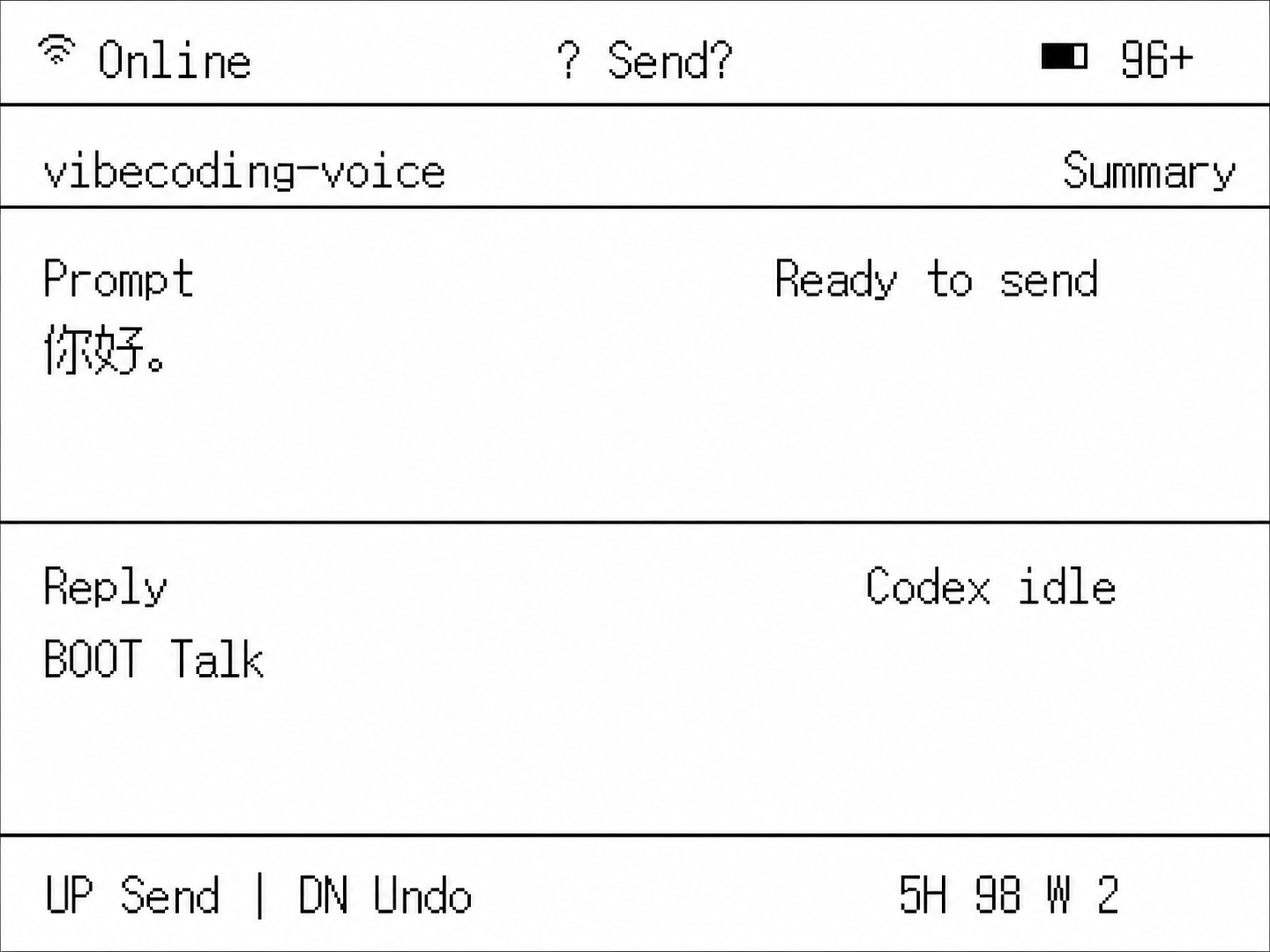
Hold to speak and send ideas to Codex or Claude Code, turning NOTE4 into a desktop voice input device.
Firmware + companion service
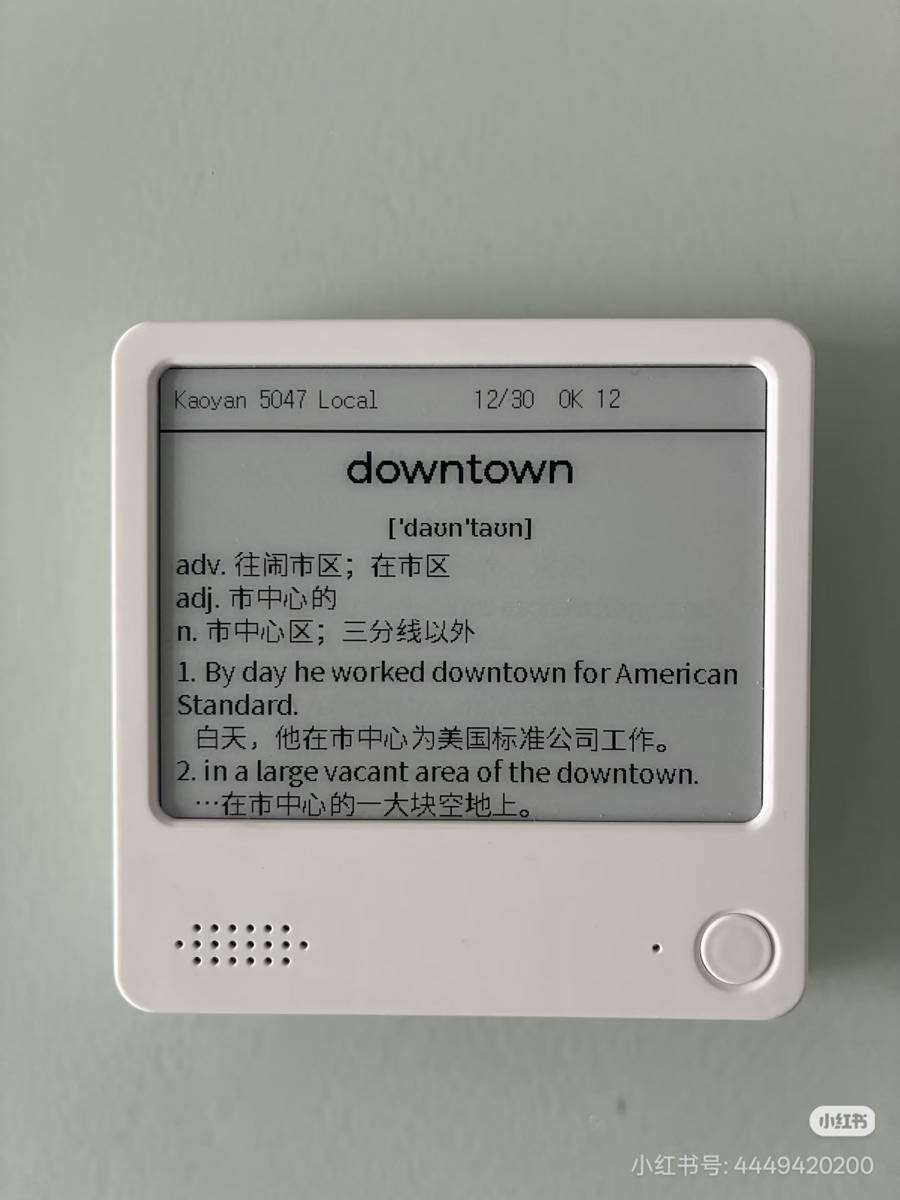
Turn NOTE4 into focused English flashcards, saving review progress and daily learning targets.
USB firmware