
Local app · NOTE4

EInk-Push

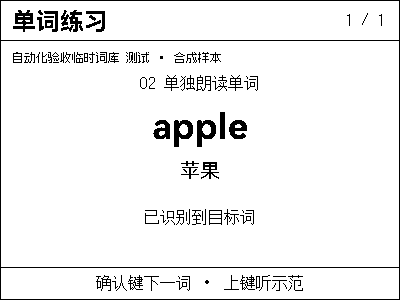
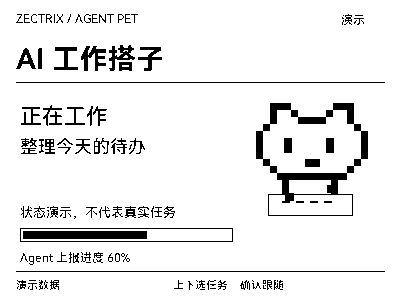
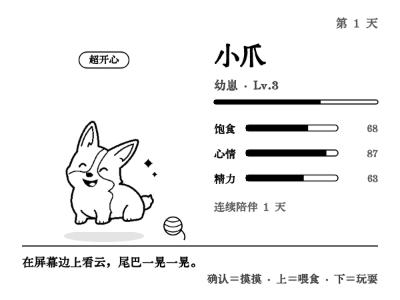
A NOTE4 push service for a NAS or always-on computer, with web management and an HTTP API. Six bundled apps cover Today, vocabulary, meal ideas, a life guide, a pet and jiaobei divination, with images, audio and device-button interaction.

What it can do

Six bundled apps: Today, vocabulary, meal ideas, life guide, pet and jiaobei
Configure devices and apps in a browser; use HTTP to send images, play audio and receive status and events
Monochrome, four-level and sixteen-level grayscale output matched to device capabilities
Bundled vocabulary and spaced repetition, with online read-aloud and optional spoken spelling
Switch apps with device buttons; settings, learning progress and pet state are saved on the host

Install & use

Install the local application

Install dependencies and preview apps on your NAS or computer, then configure the device in the web interface. Device pushes stay on the LAN; weather, online speech synthesis and optional speech recognition use external services.

Public source

NOTE4 LAN v1 · Node.js 22+ · Compatible NAS or computer · Chinese font · Same LAN · Host must stay running

An independent Node.js protocol implementation aligned with the official Rust SDK. It is not device firmware and does not require a separate Rust SDK installation. The NAS must support dependencies such as sharp and canvas; processor and OS compatibility require verification. Exit Hub, InkHub or other clients using the same NOTE4 before connecting.

  1. Prepare the runtime

    Use Node.js 22 or later and check your NAS processor and OS. Clone the repository, run npm ci and npm test, then node src/index.js --web 8080. Configure a Chinese font following the README. The web service can start without a device IP.

  2. Log in, change password and preview

    Open http://HOST-IP:8080, log in with the initial password helloworld and change it immediately. Configure location or vocabulary and check previews before connecting. Set up online speech services only as needed. The service listens on all network interfaces by default; keep it on a trusted LAN rather than exposing it directly to the internet.

  3. Connect and check device interaction

    Keep the host and NOTE4 on the same LAN and stop other device clients. Enter the IP on the Device page and save/connect; the default device port is 32342. Verify an image display receipt, button switching and audio. Exit the process normally and preserve settings, recordings and learning progress in data.

Get the Local Push SDK ↗

Give the task to Codex or another local AI and follow the current project README to install and verify it.

See the task for AI
Install and verify EInk-Push on this computer or NAS using the current README.
https://github.com/moyubyte/EInk-Push
https://github.com/moyubyte/EInk-Push/blob/main/README.md
NOTE4 LAN v1 · Node.js 22+ · Compatible NAS or computer · Chinese font · Same LAN · Host must stay running
An independent Node.js protocol implementation aligned with the official Rust SDK. It is not device firmware and does not require a separate Rust SDK installation. The NAS must support dependencies such as sharp and canvas; processor and OS compatibility require verification. Exit Hub, InkHub or other clients using the same NOTE4 before connecting.
Use Node.js 22 or later and check your NAS processor and OS. Clone the repository, run npm ci and npm test, then node src/index.js --web 8080. Configure a Chinese font following the README. The web service can start without a device IP.
Open http://HOST-IP:8080, log in with the initial password helloworld and change it immediately. Configure location or vocabulary and check previews before connecting. Set up online speech services only as needed. The service listens on all network interfaces by default; keep it on a trusted LAN rather than exposing it directly to the internet.
Keep the host and NOTE4 on the same LAN and stop other device clients. Enter the IP on the Device page and save/connect; the default device port is 32342. Verify an image display receipt, button switching and audio. Exit the process normally and preserve settings, recordings and learning progress in data.
Check previews, display completion receipts, button switching, audio and connection release on exit. All 142 project tests passed, including simulated-device tests; this does not constitute NAS or physical NOTE4 acceptance testing.
Preserve existing data and enter credentials locally only. Check previews and confirm the target before the first push; explain recording transmission to the selected service before enabling ASR. Provide start, stop, update and uninstall instructions; without an execution environment, give steps only and do not claim completion.

After installation, confirm this

Check previews, display completion receipts, button switching, audio and connection release on exit. All 142 project tests passed, including simulated-device tests; this does not constitute NAS or physical NOTE4 acceptance testing.

After installation, check the actual result on your device. Copying this task does not execute installation.

Frequently asked questions

Will it run on every NAS?

Not guaranteed. It requires Node.js 22+ and platform-native image dependencies. Some processors or operating systems may need additional dependencies or adaptation when prebuilt packages are unavailable. We installed dependencies on macOS and passed 142 automated tests; NAS deployment and physical NOTE4 operation have not been independently verified.

Is everything offline, and where do recordings go?

No. Device pushes use the LAN, but weather, initial automatic location detection and Edge read-aloud access the internet. With ASR configured, spelling recordings are sent to your chosen recognition service; flashcards work without ASR. WAV recordings are also saved on the host, with the latest 200 retained by default.

How are access and existing data managed?

Access uses one shared password with no per-user isolation; vocabulary, progress and pet state are shared. Treat the API token as a password and keep it local. Back up data before upgrading and preserve existing settings and progress.

Project & updates

Public repository. Documentation reviewed on 2026-10-27; actual support depends on the version.

Further improvements will be published in the GitHub repository. Before installing or upgrading, ask AI to read the current README and version changes, and preserve existing settings and data.

View source & instructions ↗
Local app · NOTE4Get started →

Your project details will be sent to support@zectrix.com for review before listing. Your email is used only to discuss your submission.