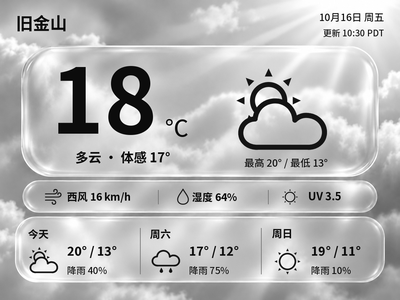
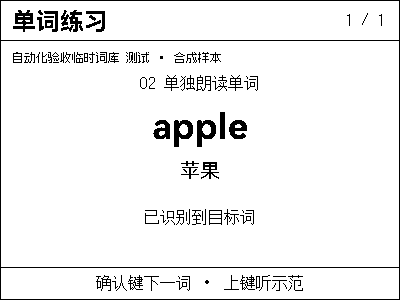
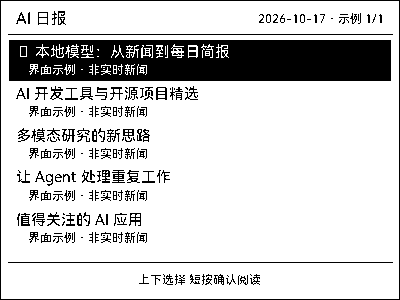
Public sourceLocal Push SDK · Local Agent status · NOTE4
SDK builds and local tests have been verified on Apple Silicon macOS. Windows and Linux require platform validation, and each plugin’s runtime dependencies may need adaptation.
Give this task to Codex or another local AI on your computer. It will prepare the SDK and local program first, then check and adapt the plugin interfaces.
See the task for AI
Use the Local Push SDK to build a local program on my computer, then integrate and verify the features of Codex Pet.
Project repository: https://github.com/itopinion/zectrix-agent-pet
Installation guide: https://github.com/itopinion/zectrix-agent-pet/blob/main/README.md
Information checked: 2026-10-20; reference commit: 2c9213dda1063f6f8a19a4470eed0b367d14b6ef. Recheck the current version before proceeding.
Local Push SDK: https://github.com/itopinion/zectrix-local-push-sdk
SDK API documentation: https://github.com/itopinion/zectrix-local-push-sdk/blob/main/docs/API.md
SDK compatibility manifest: https://github.com/itopinion/zectrix-local-push-sdk/blob/main/compatibility.json
Project requirements: Local Push SDK · Local Agent status · NOTE4
Integration approach: Build a local program with the public SDK, then integrate app logic, rendering and device events. Check interfaces and dependencies against the current source.
Read the current SDK README, API documentation and compatibility manifest first. SDK 0.1.0 matches NOTE4 firmware 3.7.2 with a 400×300 canvas; it does not support NOTE4C. Check the actual device and do not upgrade firmware automatically.
1. Identify my OS and processor, check for an existing SDK and local program, and reuse them when compatible. If missing, clone the public SDK, prepare Rust, a C/C++ compiler and CMake according to the current README, and build for this computer using a path dependency.
2. Run cargo test --locked and cargo check --locked --examples first. Implement device selection, single-connection management, PNG rendering, event handling, configuration storage and shutdown cleanup. The SDK does not provide a ready-made plugin loader.
3. Read the plugin source, reuse its business logic, and adapt its rendering, device event and audio interfaces to the local program. Implement the calling interfaces or compatibility layer it needs; renaming a dependency is not successful integration.
4. Implement rendering, state management, button handling and audio in the local program as required by the plugin, and test each function. Record completed features and any issues encountered, and report what works based on the test results.
5. NOTE4 and the computer need a reachable LAN. Enable Keep Wi-Fi in standby following the SDK guide. Confirm the target device and whether another program owns its connection; do not take it over. Local device connection needs no ZECTRIX Cloud API Key; configure data-source keys separately for each plugin.
6. Submit original 400×300 PNGs and let the SDK convert to mono, gray4 or gray16; do not dither twice. Consume next_event() continuously for interaction and call close() on exit. Do not automatically reconnect or take over the device. Do not treat ResultUnknown as failure and resend an image or audio.
7. The SDK includes no ASR, TTS or language model. Configure speech backends separately when needed. Playback uses 16 kHz mono PCM16, and recording is triggered by device buttons. Perform the first device push only after the user confirms the target and preview.

Integration steps for this project:
1. Build a local program with the SDK: Get the public Local Push SDK, prepare Rust and build tools for your OS, and pass example builds and local tests before implementing device connection and display output. The current SDK matches NOTE4 firmware 3.7.2.
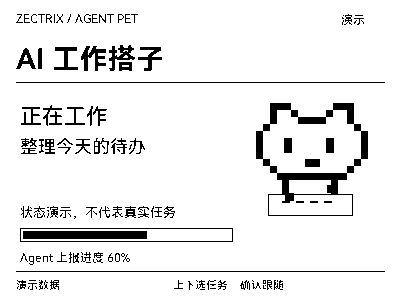
2. Integrate the pet and task status: Reuse task-state and pet logic, and implement PNG rendering, key-based paging and notification sounds in the local program. Adapt the original runtime calls to the SDK, check local Codex paths and status access, and preserve privacy settings.
3. Check local Codex following: New installations enable local Codex following by default; upgrades keep existing settings. Check the follow setting, then use a test task to verify working, waiting and completed states. Adjust animation and volume as needed; handle requests in the relevant Agent window.
First verification: Use clearly labeled test tasks to verify working, waiting and completion states, page turns and sounds. Do not present demo states as real task progress.
Report build, preview, device display-completion receipt and visual inspection separately. Provide start, stop, uninstall and update instructions, preserving existing data. Interactive apps require the computer program to keep running.
Configure accounts, keys, device addresses and personal data only locally; do not include them in shared tasks or logs. If the AI has no local execution environment, provide a build and integration plan without claiming installation.
After installation, confirm this
Use clearly labeled test tasks to verify working, waiting and completion states, page turns and sounds. Do not present demo states as real task progress.
After installation, check the actual result on your device. Copying this task does not execute installation.