Local app · NOTE4

InkHub

Manage multiple content sources for NOTE4. Switch by priority, display duration and expiry, then return to persistent content after temporary tasks. Includes a Codex companion, local gallery, and desktop notes and clock.

What it can do

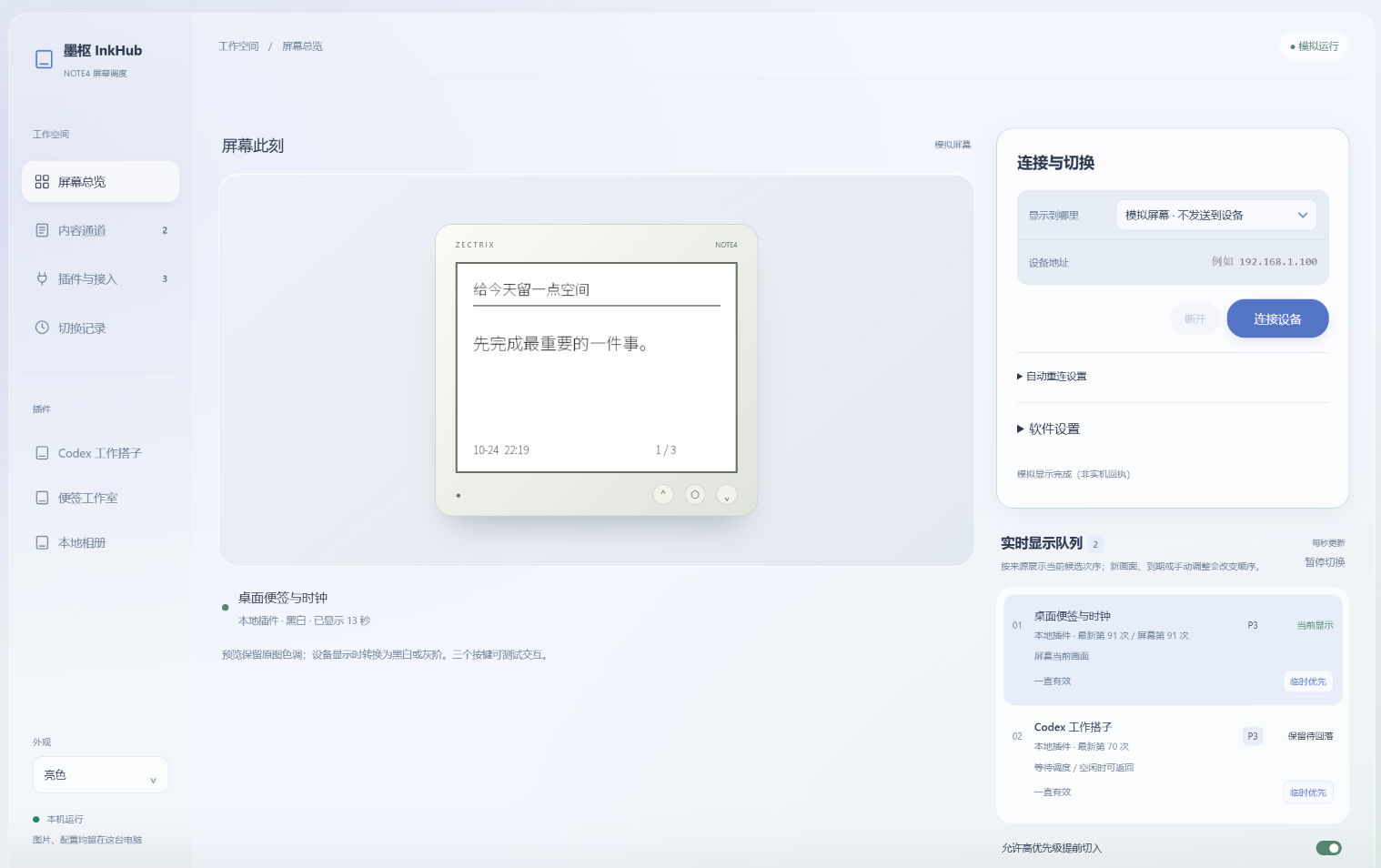
Five priority levels, minimum display time, content expiry and persistent fallback
Connect through the original-SDK gateway, HTTP API or Python plugins
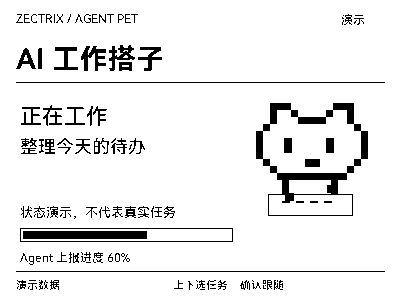
Bundled Codex companion, multi-folder gallery, desktop notes and clock
Manage the live queue in a browser and select monochrome, four or sixteen gray levels per source

Install & use

Install the local application

Get the Windows installer from project Releases, or build from source following the README. Configure plugins and scheduling in the local management page, check simulated output, then connect NOTE4.

Public source

NOTE4 LAN push · Windows installer; other platforms require building and adaptation · Same LAN · Host must stay running

This is a local computer application, not device firmware. Exit other programs using NOTE4 before connecting. The author notes that original-SDK integration, HTTP-SDK integration and audio forwarding have not been thoroughly tested on hardware; other operating systems are not guaranteed to work out of the box.

  1. Install and open the management page

    Download the Windows installer or complete portable ZIP from https://github.com/strincake/InkHub/releases. On other platforms, follow the README to prepare Rust, CMake, Python and Pillow and adapt as needed. Start the app and open its local management page from the tray; the default address is http://127.0.0.1:38476.

  2. Enable sources and preview the queue

    The three bundled plugins start disabled; enable and configure only those needed. Check gallery, note or task output in the simulated screen, then set priority, expiry and persistent fallback for each source. External programs can use the local HTTP API with an access key from the management page.

  3. Connect and verify automatic switching

    Keep the computer and NOTE4 on the same LAN and exit Hub or other direct device clients. Enter the device address under My NOTE4 and connect explicitly. Verify temporary content, fallback and buttons. Closing the browser does not stop the application; exit normally from the tray or management page.

Get the Local Push SDK ↗

Give the task to Codex or another local AI and follow the current project README to install and verify it.

See the task for AI
Install and verify InkHub locally following its current README.
https://github.com/strincake/InkHub
https://github.com/strincake/InkHub/blob/main/README.md
NOTE4 LAN push · Windows installer; other platforms require building and adaptation · Same LAN · Host must stay running
This is a local computer application, not device firmware. Exit other programs using NOTE4 before connecting. The author notes that original-SDK integration, HTTP-SDK integration and audio forwarding have not been thoroughly tested on hardware; other operating systems are not guaranteed to work out of the box.
Download the Windows installer or complete portable ZIP from https://github.com/strincake/InkHub/releases. On other platforms, follow the README to prepare Rust, CMake, Python and Pillow and adapt as needed. Start the app and open its local management page from the tray; the default address is http://127.0.0.1:38476.
The three bundled plugins start disabled; enable and configure only those needed. Check gallery, note or task output in the simulated screen, then set priority, expiry and persistent fallback for each source. External programs can use the local HTTP API with an access key from the management page.
Keep the computer and NOTE4 on the same LAN and exit Hub or other direct device clients. Enter the device address under My NOTE4 and connect explicitly. Verify temporary content, fallback and buttons. Closing the browser does not stop the application; exit normally from the tray or management page.
Check the queue, priority interruption and fallback, gallery navigation and connection release on exit. We reviewed public source and the author’s interface screenshot; we have not independently tested the project on hardware.
Preserve existing settings and plugin data; enter access keys locally only. Provide start, exit, uninstall and data-retention instructions. Without local execution, provide steps only and do not claim installation is complete.

After installation, confirm this

Check the queue, priority interruption and fallback, gallery navigation and connection release on exit. We reviewed public source and the author’s interface screenshot; we have not independently tested the project on hardware.

After installation, check the actual result on your device. Copying this task does not execute installation.

Frequently asked questions

Is this new firmware?

InkHub runs on your computer and connects to NOTE4 through the existing LAN push SDK. It is not a replacement device firmware package; check device protocol compatibility in the README before use.

What is the HTTP API for?

External programs submit images to InkHub for scheduling instead of connecting to the screen individually. The API also registers sources, reports display receipts and returns button events. It listens on 127.0.0.1:38477 by default and needs no public server; InkHub still uses the device SDK to push to NOTE4.

Can it replace every existing application?

Not necessarily. Existing SDK programs can try targeting the InkHub gateway, but compatibility must be verified. External interfaces do not expose device recording; audio is mainly for image-linked cues of up to three seconds. Full voice-interaction applications should not be assumed compatible.

Project & updates

Public repository. Documentation reviewed on 2026-10-25; actual support depends on the version.

Further improvements will be published in the GitHub repository. Before installing or upgrading, ask AI to read the current README and version changes, and preserve existing settings and data.

View source & instructions ↗
Local app · NOTE4Get started →

Your project details will be sent to support@zectrix.com for review before listing. Your email is used only to discuss your submission.